
Apple Mail Automatic Setup
Setting up your hosted email account on an Apple device is easy with Able Computer Consulting's automatic configuration tool.
Simply enter your name and email address, download your personalized configuration profile, and follow the instructions below.
1. Generate Your Configuration Profile
This tool automatically prepares the incoming and outgoing mail server settings for your email account.
To install your email configuration profile, please visit this page using Safari on the iPhone or iPad you want to set up.
Viewing this page on a computer? Scan the QR code with your iPhone or iPad camera to open this setup page directly on your device.
Using a Mac? Open this page in Safari on your Mac instead.

2. Install Your Configuration Profile
Select your device below for step-by-step installation instructions.
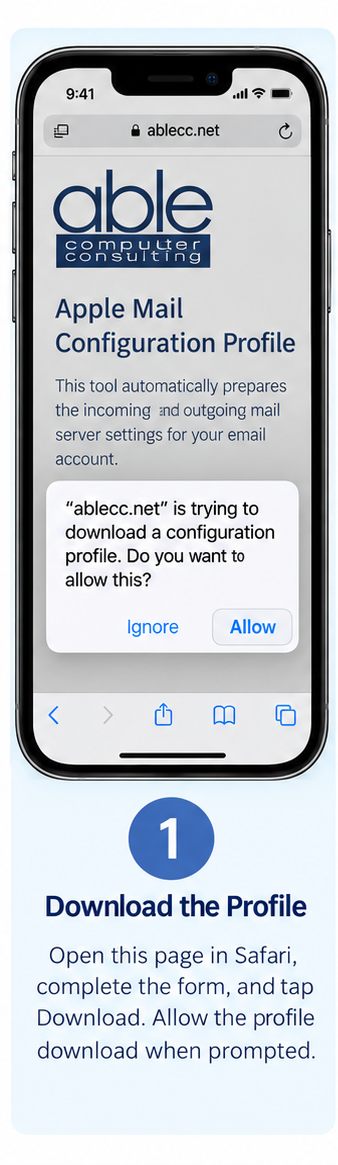
Download the Profile
Open this page in Safari, complete the form, and tap Download. Allow the profile download when Safari asks.
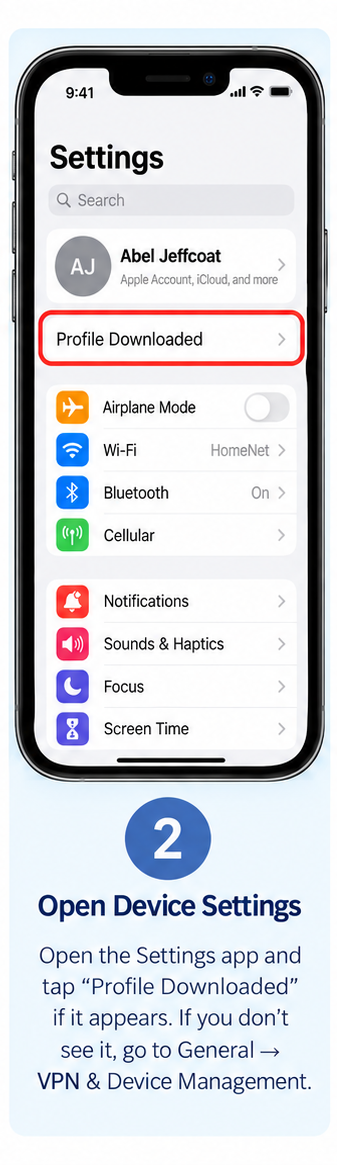
Open Device Settings
Open Settings and select Profile Downloaded if available. Otherwise, go to General → VPN & Device Management.
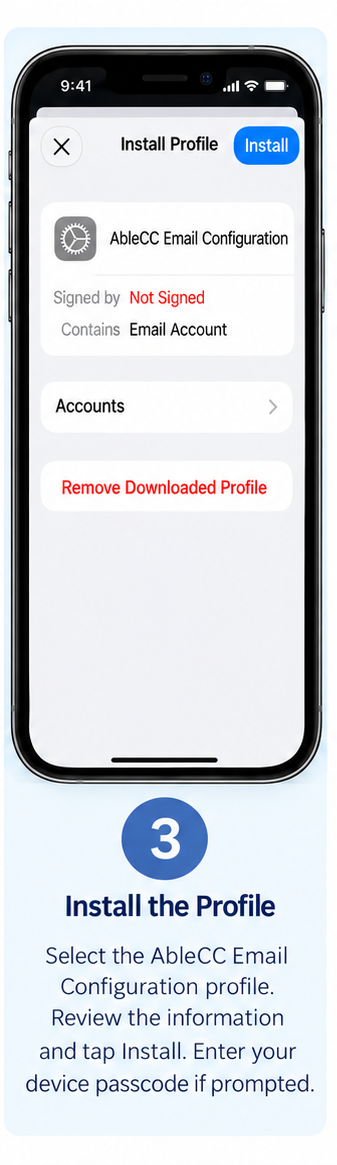
Install the Profile
Select the Able Computer Consulting email configuration profile. Review the information and tap Install. Enter your device passcode if prompted.
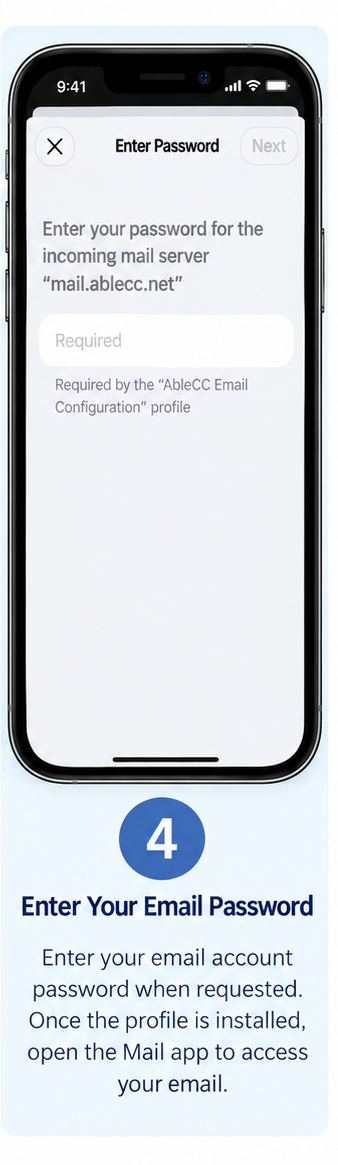
Enter Your Email Password
Follow the remaining prompts and enter your email account password when requested. After installation, open the Mail app.
Download the Profile
Complete the form above using Safari on your Mac. Save the downloaded .mobileconfig file.
Open the Profile
Double-click the downloaded profile. Then open System Settings → General → Device Management to review it.
Install the Profile
Select the downloaded profile, review its contents, and follow the installation prompts. Approve the installation when requested.
Open Apple Mail
Provide your email password when prompted, then open Apple Mail and allow time for your mailbox to synchronize.
Manual Email Configuration
If you prefer to set up your email manually, use the following server settings.
| Account Type | IMAP |
|---|---|
| Incoming Server | mail.ablecc.net |
| Incoming Port | 993 (SSL/TLS) |
| Outgoing Server | mail.ablecc.net |
| Outgoing Port | 587 (STARTTLS) |
| Username | Full email address |
| Authentication | Password |
Frequently Asked Questions
What is a configuration profile?
A configuration profile is a file that provides your Apple device with email account settings, including incoming and outgoing server information.
Does this tool need my email password?
No. The generator only needs your name and email address. Your device will request your password during setup or when connecting.
Why does my configuration profile say "Not Signed"?
The configuration profile is currently unsigned, meaning it does not contain a digital signature verifying its publisher. Only install profiles you intentionally downloaded from a trusted source, and review their settings before installation.
Where can I find the downloaded profile?
On iPhone or iPad, check Settings for Profile Downloaded or visit General → VPN & Device Management. On a Mac, check System Settings → General → Device Management.
Can I use these settings with other email apps?
Yes. The manual IMAP and SMTP settings above can be used with compatible email applications. The downloadable configuration profile is intended for supported Apple devices.
What if my password is not accepted?
Confirm that you are entering your email account password, not your Apple Account password. If the problem continues, contact Able Computer Consulting.
Need Help Setting Up Your Email?
If you experience problems downloading, installing, or connecting your email account, Able Computer Consulting is here to assist.
Contact Able Computer Consulting